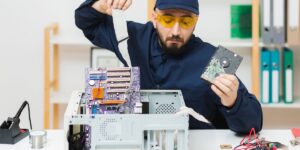
How to Upgrade a PC: A Complete Step-by-Step Guide for Beginners

Upgrading your computer can breathe new life into an older system and improve performance for gaming, productivity, or creative work. If you’ve ever wondered how to upgrade a PC, this guide will walk you through everything you need to know—from identifying what needs an upgrade to safely installing new components. Whether you’re learning how to code for beginners or planning how to build a gaming PC, understanding PC upgrades is an essential skill that can save you money and help you get more out of your hardware.
Why You Should Learn How to Upgrade a PC
Computers age over time. As new software demands more power and games push graphics limits, your PC might start feeling slower. Learning how to upgrade a PC allows you to extend its lifespan instead of buying a new one every few years. Upgrading gives you control over performance, allows you to customize your setup, and keeps your system ready for modern tasks like programming, gaming, and content creation.
Upgrading can mean replacing parts like the RAM, storage, graphics card, or even the motherboard. The good news is that most upgrades are easier than you think, even for beginners. With the right knowledge, you can upgrade your PC in just a few hours.
Assessing What to Upgrade
Before buying any new parts, it’s important to determine what is slowing your PC down. Here’s how to do it:
- Check performance bottlenecks: Open your Task Manager (Windows) or Activity Monitor (Mac/Linux) and see which components are under strain. If CPU or memory usage is constantly high, that’s a sign those parts may need an upgrade.
- Test gaming performance: If games run poorly, the GPU (graphics card) may be the limiting factor.
- Measure load times: Slow loading or boot-up usually points to an outdated hard drive that could be replaced with a solid-state drive (SSD).
- Evaluate compatibility: Ensure your motherboard and power supply support the new components you plan to install.
By evaluating these factors, you’ll know where to invest your money for the best results.
Essential Components to Upgrade
1. RAM (Memory)
Upgrading RAM is one of the easiest and most affordable ways to improve performance. It helps your computer handle multiple tasks simultaneously and speeds up overall responsiveness. If your PC currently has 8GB of RAM, upgrading to 16GB or 32GB can make a noticeable difference, especially for gaming or video editing.
2. Storage: SSD vs. HDD
If you’re still using an HDD (hard disk drive), switching to an SSD (solid-state drive) will dramatically improve boot times and file access speeds. Modern SSDs are faster, more reliable, and energy-efficient. Many users choose to keep both—using an SSD for the operating system and an HDD for extra storage.
3. Graphics Card (GPU)
For gamers and creative professionals, the GPU is the heart of the system. When learning how to build a gaming PC, you’ll quickly discover that the graphics card determines the quality of your visuals and frame rates. Upgrading your GPU allows you to play newer games and handle demanding tasks like 3D rendering or video production.
4. Processor (CPU)
The CPU acts as your computer’s brain. Upgrading your processor can significantly improve multitasking and overall performance, especially if you use applications that rely on CPU power. Before upgrading, check if your motherboard supports the new CPU model.
5. Power Supply (PSU)
If you’re adding more powerful components, your power supply might need an upgrade. Always choose a PSU with sufficient wattage and good efficiency ratings. A reliable PSU ensures your components receive stable power, protecting them from damage.
6. Cooling System
Upgrading your cooling setup is vital when you install high-performance components. Proper cooling prevents overheating and prolongs the life of your PC. Consider adding case fans or liquid cooling systems for better thermal management.
Preparing for the Upgrade
Before opening your computer, take these precautions:
- Backup your data: Always back up important files to an external drive or cloud storage.
- Gather your tools: You’ll need a screwdriver, anti-static wrist strap, and thermal paste (for CPU upgrades).
- Disconnect power: Unplug your PC from the outlet and remove any connected peripherals.
- Ground yourself: Use an anti-static wrist strap or touch a metal surface to prevent electrostatic discharge, which can damage components.
Preparation ensures a smooth and safe upgrade process.
Step-by-Step: How to Upgrade a PC
- Open the case: Remove the side panel of your PC case carefully. Most modern cases use thumbscrews for easy access.
- Remove old components: Depending on the part you’re upgrading, disconnect and remove the old component carefully.
- Install the new part: Align the new hardware with its slot (RAM, GPU, or CPU) and press firmly until it clicks into place. For a CPU, apply a thin layer of thermal paste before attaching the cooler.
- Connect power cables: Ensure all power cables are securely connected.
- Close the case: Once everything is installed, reattach the side panel.
- Boot up and test: Power on your PC and check if the system recognizes the new hardware. Update drivers if needed.
These steps can vary depending on your specific hardware, but the general process remains the same.
Testing and Optimization After the Upgrade
Once your PC boots successfully, verify that everything functions correctly. You can use tools like CPU-Z, HWMonitor, or GPU-Z to check component performance and temperatures. Run benchmarking software to see performance improvements.
Don’t forget to:
- Update BIOS and drivers.
- Reconfigure fan speeds for better cooling.
- Adjust system settings for new hardware.
By doing this, you’ll ensure your upgrades are running at their full potential.
How to Upgrade a PC for Gaming
If your main goal is to play modern games, upgrading for gaming performance requires strategic choices. Focus on components that directly affect game speed and visuals:
- GPU: The most important component for gaming.
- CPU: Needed for processing game logic and AI.
- RAM: At least 16GB recommended for modern games.
- Storage: Use SSDs to reduce load times.
While learning how to build a gaming PC, you’ll understand how crucial balance is. Pairing a powerful GPU with an outdated CPU causes “bottlenecks,” where one component limits the performance of another. Always aim for balanced upgrades.
Common Mistakes to Avoid When Upgrading a PC
- Ignoring compatibility: Always check socket types, power requirements, and physical space before buying parts.
- Skipping BIOS updates: New components may not work correctly without updated firmware.
- Using low-quality power supplies: Cheap PSUs can damage expensive hardware.
- Forgetting cable management: Proper cable organization improves airflow and looks more professional.
- Not reinstalling drivers: Outdated or incompatible drivers can cause performance issues.
By avoiding these mistakes, your upgrade process will be smoother and more rewarding.
The Connection Between PC Upgrades and Learning to Code
Interestingly, people learning how to code for beginners often start with upgrading or building their own computers. Understanding hardware helps new coders grasp how software interacts with physical components. A faster PC can also speed up compiling code, running simulations, and testing applications. So, if you’re a beginner programmer, upgrading your PC is a smart investment.
Maintenance Tips After Upgrading
Once you’ve completed your upgrade, regular maintenance keeps your system performing at its best:
- Clean dust from fans and filters monthly.
- Monitor system temperatures.
- Keep software and drivers up to date.
- Check for loose cables occasionally.
These small steps will prevent issues and extend the life of your upgraded components.
FAQs About How to Upgrade a PC
Q1: Is it cheaper to upgrade a PC or buy a new one?
Upgrading is usually cheaper, especially if your motherboard and power supply are still in good shape. You can target specific parts that need improvement without replacing everything.
Q2: What should I upgrade first for better performance?
Start with RAM or an SSD for the biggest performance boost. Then move on to the GPU or CPU if needed.
Q3: Do I need technical experience to upgrade a PC?
Not necessarily. Most upgrades, like adding RAM or replacing a hard drive, are beginner-friendly. Follow online tutorials or manufacturer guides.
Q4: Can I upgrade a pre-built PC?
Yes, but check for compatibility. Some pre-built systems have limited upgrade options due to proprietary parts.
Q5: How often should I upgrade my PC?
On average, upgrading every 3–5 years keeps your system current with modern software and games.
Final Thoughts
Learning how to upgrade a PC is an empowering skill that gives you control over your technology. Instead of replacing your entire system, upgrading lets you tailor your PC to your evolving needs—whether that’s gaming, programming, or everyday use.
By following this step-by-step guide, checking compatibility, and upgrading wisely, you can transform an aging computer into a high-performing machine that meets today’s demands. And as you continue exploring how to code for beginners or understanding how to build a gaming PC, your upgraded computer will be the reliable partner you need on your tech journey.